
Many programmers joke that “Emacs is an operating system; just missing a good text editor” (or however it was).
Emacs is, on its core, is an extremely flexible and mature Elisp SDK, it has:
- a GUI library (
widget.el) - a package manager (ELPA, MELPA, …)
- a customization interface (
customize) - theming
- a programming language (Elisp)
… that has a really strong community, and text editor.
It has enough applications that you could realistically use it as your operating system (with a web browser like Firefox or Chrome).
But to do that, you need to know how to configure it!
This guide is meant to help you make a comfortable development, social, email, music playing, and system administration environment from scratch.
I am using Emacs 30.0 on this example; it should work on any modern Emacs version.
Packages
I’m going to cover how to set up these packages:
- the “modern” completion stack (vertico, embark, consult, marginalia, and orderless)
- EMMS, a music player
- Gnus, a newsreader that supports mail from many sources and Usenet
- ERC, an IRC client
calc, a calculator- EWW, a web browser
- Org mode, an everything-organizer
- GUD, the Grand Unified Debugger, an awesome debugging system for Emacs and perhaps the debugger of the century (#glazing)
- project.el, a project management system
- vc-dir, a built-in version control system
- Magit, a rich Git client
Getting started
Emacs is probablt available in your system’s repos if you are on linux, if you are on Mac then use brew, and on windows, downlad it here.
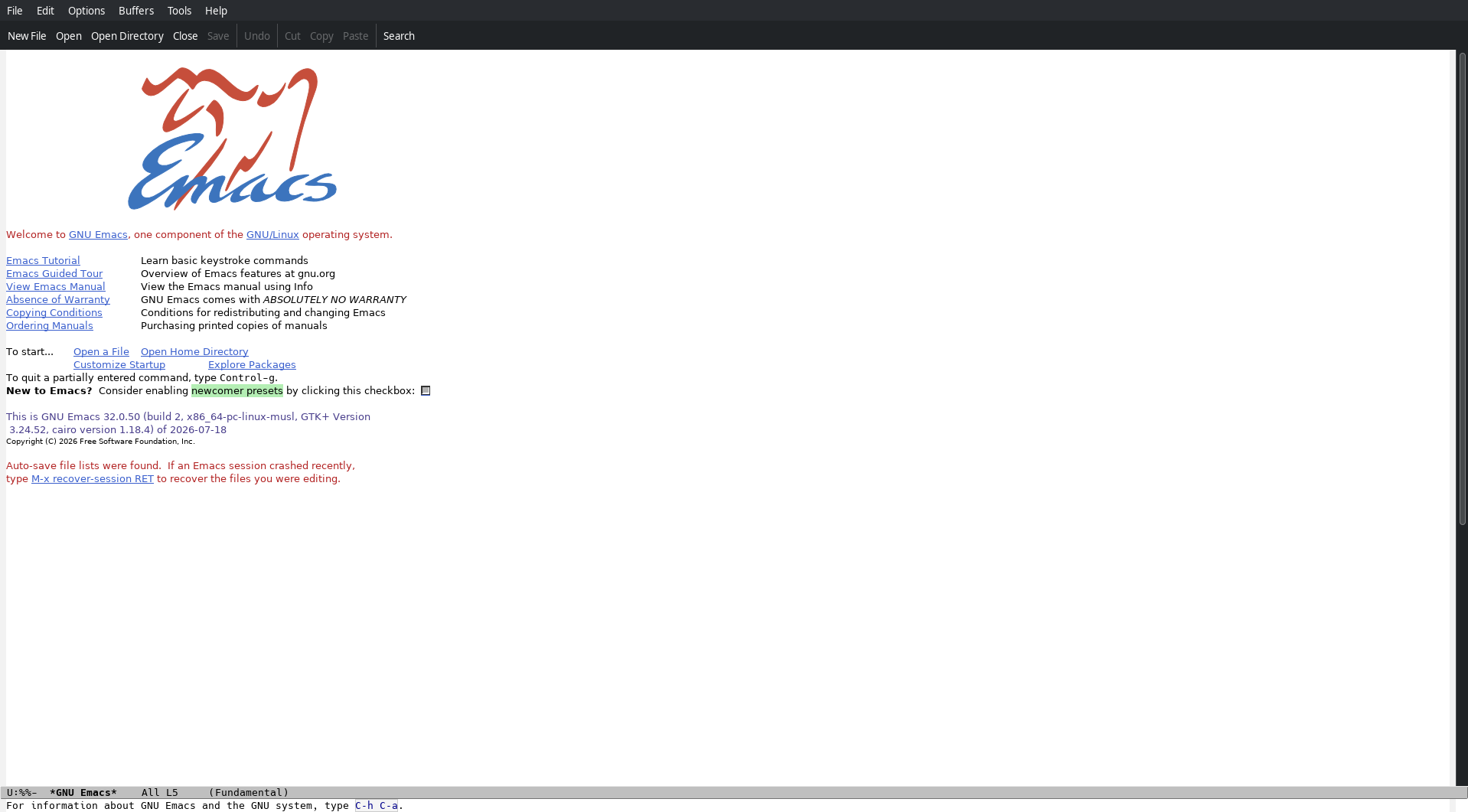
Once you open emacs, it should look somewhat like this:
If you are new, now press C-h t to open the tutorial
(that is, the control key and the h key at the same time, then let go,
and press t). This will open the tutorial, that will teach you the
basics of Emacs, read it and then continue.
Now, we’ll start configuring! Press C-x C-f (control-x
and then control-f) and, on the prompt that has opened bellow (these
kinds of interactions are called interactive minibuffer inputs, and
you’ll see them everywhere in emacs), type this:
~/.emacs.d/init.el and press RET (return;
enter on some keyboards). Then do M-x (Alt-x), and this
time type mkdir, another minibuffer input will appear,
press enter.
Well done! Now you’ve just made a folder (directory) named
.emacs.d on your home directory, and opened the file
init.el from inside the directory.
You can type text like normal, and save with C-x C-s
(Control-x and then Control-s).
Sensible defauls
Some of Emacs’s defaults are really, weird, so inside the
ìnit.el file, paste this using C-y (control-y)
after you copied it:
(setq use-short-answers t ; use short answers
      inhibit-startup-screen t) ; don't show the startup screen

(menu-bar-mode -1) ; get rid of the menu bar on top
(tool-bar-mode -1) ; get rid of the tool bar

(column-number-mode 1) ; see what column we are on, not only in what line
(global-display-line-numbers-mode 1) ; display line numbers on the gutters

(setq-default fill-column 80) ; fill-column specifies the maximum text width for
                             ; text formatting commands.   Default is 70, increase it to 80.
                             ;   You can set it with C-x f (Control-X and then F),

(global-display-fill-column-indicator-mode) ; indicates what is the fill-column width visually

;; This one is a bit hard to digest if you are a begginner, but basically, add-hook lets
;; use execute a function (here the code after "lambda ()", lambda makes a function with no
;; name) when something happens, prog-mode-hook means that it happens when we open a file
;; and program in it.
(add-hook 'prog-mode-hook
      (lambda ()
        (setq-local show-trailing-whitespace t))) ; when programming, show useless spaces
Now do M-x (Alt-x) and do eval-buffer, then
press RET, this will do (evaluate) the changes in the spot.
But it still looks kinda ugly, doesn’t it? Well, Emacs ships with some really cool themes we can use, like:
modus-operandi, an awesome light thememodus-vivendi, a simple dark theme with medium-high contrast, this is what I personally usewombat, a low-contrast dark themetangoandtango-dark, the classic GNOME themesleuvenandleuven-dark, some ugh… idiosyncratic but good-looking themestsdh-light, looks really nice. Also has a dark version that looks horrible.adwaita, more GNOME propagnda
Try out a theme by doing M-x load-theme, pressing RET
(return), and typing the name of the theme, then pressing RET.
NOTE: Loading one theme after the other just stack up the properties, which can look horrendous, so use the
disable-themecommand you can execute withM-xto disable a theme.
Load a theme on start up by adding this to your init.el
file:
(load-theme <THEME NAME> t)